Moving a SaaS website to Framer is mostly a design decision. The site gets faster to change, the marketing team can publish without a developer, and the pages finally look like the product. The risk is everything you cannot see on the new site: the old addresses Google already knows, and the links pointing to them.
You keep your rankings when every old URL still leads somewhere useful, every page keeps its title and description, and you check what Google actually sees in the weeks after launch. This is the plan we follow, including the mistakes we made moving our own site this autumn.
What we got wrong on our own migration
When we rebuilt fackt.io, we moved off our old Framer site to a new one. Two things went wrong, and both only showed up in Google Search Console weeks later.
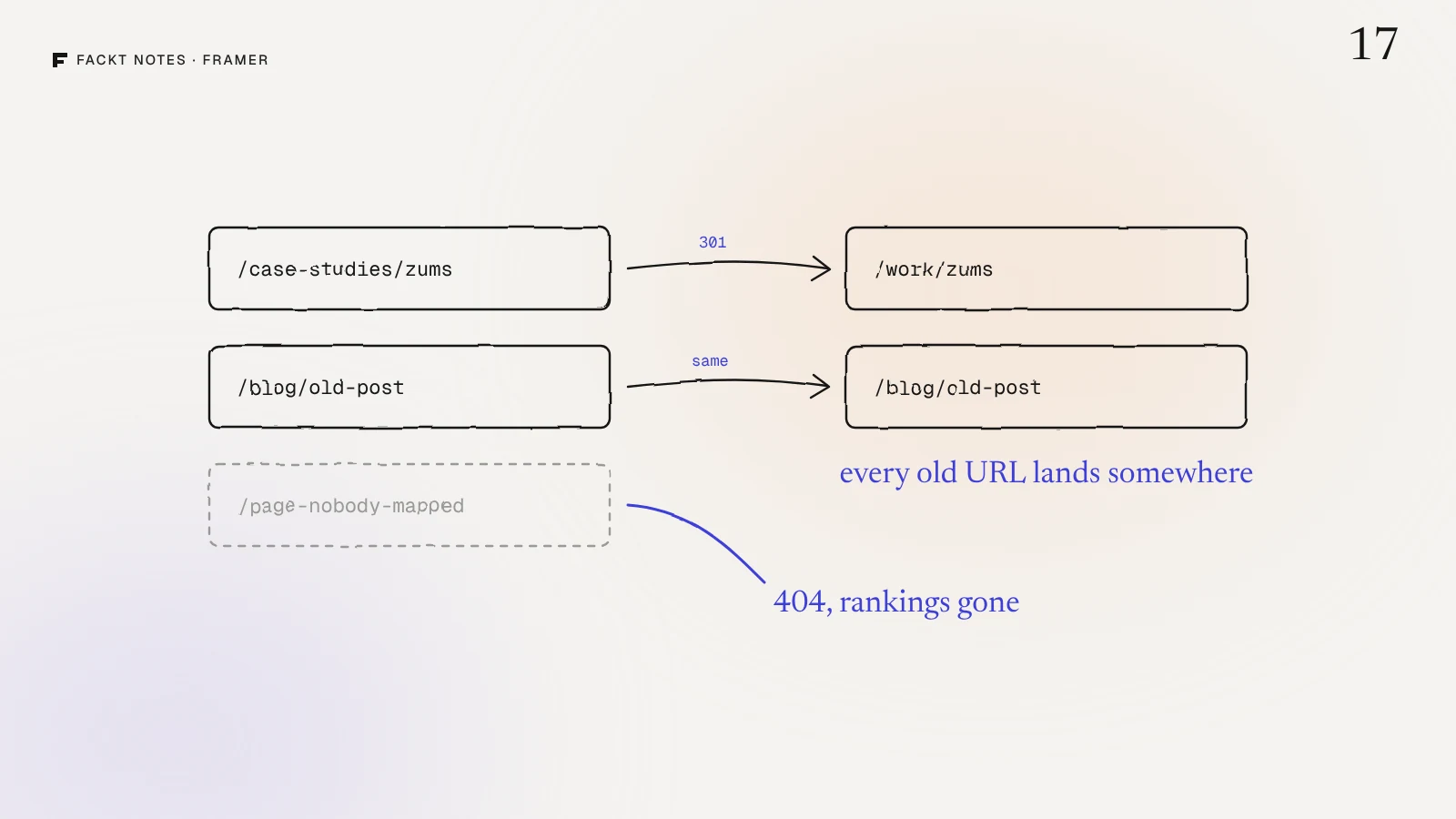
First, ten old addresses from the previous site, like the old case study pages, returned “page not found”. Google had them indexed, some had links from other sites, and for a while they led nowhere. We first redirected them all to the work page, then mapped each one to its own new case study, which is the better fix.
Second, an early version of the new site told Google that the “real” version of some pages was an address ending in .html. Google believed it and set aside the clean addresses we wanted. Fixing the canonical tag, adding a permanent redirect from the .html versions and asking Google to recrawl the pages sorted it out.
Neither problem was hard to fix. Both were easy to miss. That is what the plan below is for.
1. Write down every URL before you touch anything
Before the first page goes into Framer, export the list of addresses you have today:
- Your current sitemap. Usually at yourdomain.com/sitemap.xml.
- Your top pages in Google Search Console. Performance, then Pages, for the last three months. These are the pages you cannot afford to lose.
- Pages other sites link to. Search Console shows these under Links.
Also save a baseline: clicks, impressions and the top queries for the last three months. Without it, you cannot tell after launch whether anything changed.
2. Keep URLs the same wherever you can
The safest redirect is the one you never need. When you build the site in Framer, keep page paths and CMS slugs identical to the old ones where possible. /blog/how-we-price stays /blog/how-we-price. Only change a URL when the old one is genuinely wrong.
3. Give every old URL one outcome
Go through your list and mark each address:
- Keep: same URL on the new site.
- Redirect: the page moved, send it to its new address.
- Merge: two thin pages became one, send both to the new page.
- Remove: the page is gone for good and nothing replaces it.
Redirect each page to its closest match, never everything to the homepage. A case study goes to the new case study, a pricing page to the new pricing page. And avoid chains: if an old URL already redirected somewhere, point it straight at the final address.
4. Set up the redirects in Framer
In Framer, redirects live in your project’s Site Settings, under Hosting, then Redirects. Add the old path and the new path for each rule, then publish the site to apply them.
A few things worth knowing:
- Wildcards save time. A rule like /blog/* covers every post in a section, and you can reuse parts of the old path in the new one.
- Bulk import. Long lists can be imported from a CSV file with a from and a to column.
- Same domain only. Framer redirects paths within your domain. If the domain itself changes, set up the domain level redirect where the old domain is hosted.
- Changing a slug later does not update redirects. If you rename a page or a CMS item after launch, add a redirect for the old address yourself.
- Keep them for at least a year. Old links in emails, posts and other sites keep working long after Google has moved on.
5. Carry over titles, descriptions and previews
Every important page and every CMS template needs its own title, description and social preview image, set in Framer’s page settings. Copy them from the old site where they worked, and fix the ones that were missing or duplicated.
Check two settings while you are there. Pages that should not appear in search, like thank you pages or drafts, should be hidden from search engines. And if your old site had structured data, like FAQ or product markup, add it back as custom code and test the published page.
6. Make sure each page has one address
Framer creates the sitemap and robots.txt for you. What it cannot do is know which version of a page you meant if two addresses show the same thing. Open your most important pages, view the source, and check that the canonical tag points at the exact address you want indexed. This is the one that caught us.
7. The first two weeks after launch
- Submit the sitemap in Search Console, under Sitemaps.
- Inspect your top pages with the URL Inspection tool and request indexing for the most important ones. Google allows about ten requests a day, so start with the pages that bring the most clicks.
- Click through your old URLs from step one and confirm each lands on the right page.
- Watch the Pages report. “Not found (404)” means a missing redirect. “Alternate page with proper canonical tag” on a page you want indexed means the canonical points elsewhere.
- Compare against your baseline after two to four weeks, page by page, not just in total.
When to get help
A migration is a good moment to fix the site, not just move it. If you are planning to move to Framer, our Framer agency for SaaS page shows how we design and build sites your team can edit, and keep the URLs that already rank. Still deciding on the platform? Read Framer vs Webflow for a SaaS website.
Or send us your current site for a free audit: a video walkthrough and a written list of fixes, ordered by impact, within 2 days.
Quick answers
Will I lose my Google rankings if I move my website to Framer?
Not if every old address still leads somewhere useful. Keep URLs and CMS slugs the same where you can, redirect every one that changes to its closest new page, carry over titles and descriptions, and check Search Console in the weeks after launch. Rankings drop when pages disappear or move without a redirect, not because of the platform.
How do I set up redirects in Framer?
In your project's Site Settings, under Hosting, open Redirects and add the old path and the new path for each page. Framer supports wildcards, so one rule like /blog/* can cover a whole section, and you can import many redirects at once from a CSV file. Redirects only work for paths on your own domain.
Should I redirect old pages to the homepage?
No. Send each old page to the closest matching new page. A blanket redirect to the homepage loses the relevance the old page had, and search engines often treat it like a missing page.
How long should redirects stay in place after a migration?
At least a year, and longer for pages with links from other sites. Old links in emails, posts and other websites keep sending people to the old addresses long after search engines have updated.